Demystifying Depot Infrastructure
This page exists to help demystify the AWS infrastructure behind Depot.
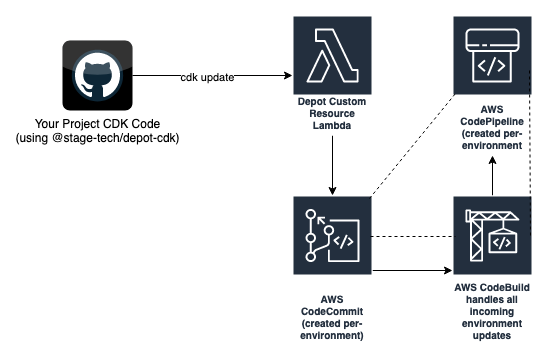
You use our depot-cdk npm package as an entry point to create your Depot environment. You can either install this npm package directly into your own CDK codebase, or you can use our Depot CLI and it’s convenient commands to quickly scaffold out a Depot project. In the latter case you’ll get a GitHub repository filled with starter CDK code and an environment being deployed in under 2 minutes.
The depot-cdk npm module lets you use our interfaces for Depot Environment, Package, Dataset (and more) creation in your own CDK code.
Behind the scenes, we use CDK Custom Resources to map what you define in your CDK code into a “configuration repository” (AWS CodeCommit Repository).
Once the Depot environment’s configuration is received from depot-cdk, a process kicks off in CodeBuild in the AWS account to run our depot-platform-cdk code, with your environment’s configuration as the input parameters.
To learn more about the infrastructure that is deployed into AWS for a Depot environment, visit the Cloud Infrastructure page.
Customised Depot Environment
Depending on what features you enable in your CDK project using the @stage-tech/depot-cdk library, determines what other AWS infrastructure will be deployed.
DynamoDB Location
Adding a DynamoDB location will result in DynamoDB tables being created to support your Depot installation. By default an environment will share DynamoDB table storage among all Datasets. It is also possible to create multiple DynamoDB Locations for an environment with differing prefixes (allowing for sharded table storage for different Datasets).
Snowflake Location
Snowflake Locations can be added and used for Dataset storage. Depot Datasets are backed by Snowflake Databases that hold your data. The standard Depot interfaces for creating, deleting, or querying data can be used (for example Depot CLI, GraphQL, REST, Transactions), and the data will be acted upon in Snowflake.
ElasticSearch (OpenSearch) Location
Adding the ElasticSearch Location will deploy an AWS OpenSearch cluster into your environment’s VPC. Queries for data can be resolved using this cluster. When using an ElasticSearch Location as a replica/secondary storage location, then queries to list data will be resolved by this storage.
Cognito Location
Cognito can be added as a Depot Location and used as an Identity provider for access to Depot Data operations (read/write) on your Datasets. Once configured, the Cognito location can be used for Dataset authorization.
You can also use IAM principals for Dataset authorization on read/write operations).
S3 Tables Location
S3 Tables is AWS's managed Apache Iceberg table storage. Depot stores and queries the Location's Datasets in a table bucket that it provisions, or in an external one. See the S3 Tables location guide for details.
Other SQL Locations
Depot also supports Athena (Glue) and Aurora (Postgres) SQL Locations. Find more information about these Locations in the Locations Guide.
Executors and Transactions
Executors allow you to define which compute resources are used for data operations across differing storage types.
Transactions can run your input data into a pipeline that you define, transforming and/or materializing it into views that you can then query back afterwards. They can also be used to merge, refresh, and update data.
Gateways
There are 4 x Depot Gateway types. Each type deploys the relevant AWS API Gateway type. You use the Depot Gateway Constructs to create these.
- API - the standard Depot Gateway type - provides a Public API Gateway, linked to Route53 to provide a friendly hostname via CNAME record. Queries to your Depot environment via GraphQL, Depot CLI, or REST can be issued against this.
- IAM - creates an IAM Gateway. Provides an IAM Gateway, linked to Route53 to provide a friendly hostname via CNAME record. Queries to your Depot environment via GraphQL, Depot CLI, or REST can be issued against this. You can also authorize access to certain IAM principals with this Gateway type.
- WebSockets - creates a WebSocket API Gateway. Allows a websocket client to connect and use sockets to send/receive updates for your data. You can also set up notification subscriptions. For example you can react to ObjectCreatedEvent events, or ObjectUpdatedEvent events.
- Lambda - by default your environment will get an Lambda Gateway function. This can be used to query your environment at an ‘Admin’ level (as well as make data queries). There is another variant of the Lambda Gateway called a Lambda Data Gateway. This is an optional Gateway type that you can add which does not have any “Admin function” access. Perfect for queries to your Data only.
See more in the Gateways documentation.
Backup and Restore
When using DynamoDB Location storage, backups can be performed continuously using DynamoDB's Point-in-time-recovery (PITR) integration if you enable the feature on the Location. Refer to the Backup and Restore documentation for more details.
Logs and Troubleshooting
Where do you find logs relating to a Depot environment deployment? Three areas. And it’s best to check them in this order:
- CloudWatch Environment-level dashboard. (Search the CloudWatch Dashboards console for your environment name/id). Metrics and Logs from multiple sources in the environment are aggregated here.
- CloudFormation
- SDP Bootstrap Environment CodeBuild execution logs (the sdp-bootstrap-environment CodeBuild project)
- Custom Resource Logs (Lambda Functions that log to CloudWatch Log Groups)
CloudFormation Logs
At a high-level: The CloudFormation console can be useful when looking for deployment issues. (cdk deploy). Check your main service's Depot Environment resource stack Events. Locate any Create or Update errors at the beginning of the time interval where a deployment failure was noted.
Your Stack
First of all, check to see if the cause has been surfaced in your CloudFormation stack.
Your stack will be named exactly as your CDK code project’s stack is named. Check this first. Use the Events tab and home in on the time that the failure occurred. Usually you’ll see a series of Updating or Created events which suddenly change to some sort of Failed event. If the error was at this higher up level (maybe in your own CDK code stack) you should see the details of the error right here.
The Depot Environment Stack
The next place to check in CloudFormation is your own Depot Environment’s Stack. Each environment is assigned a unique ID. You can find the ID by looking in your own CDK stack’s resources in the CloudFormation console. Look for the Environment resource. The Physical ID shown is the ID of your Depot environment.
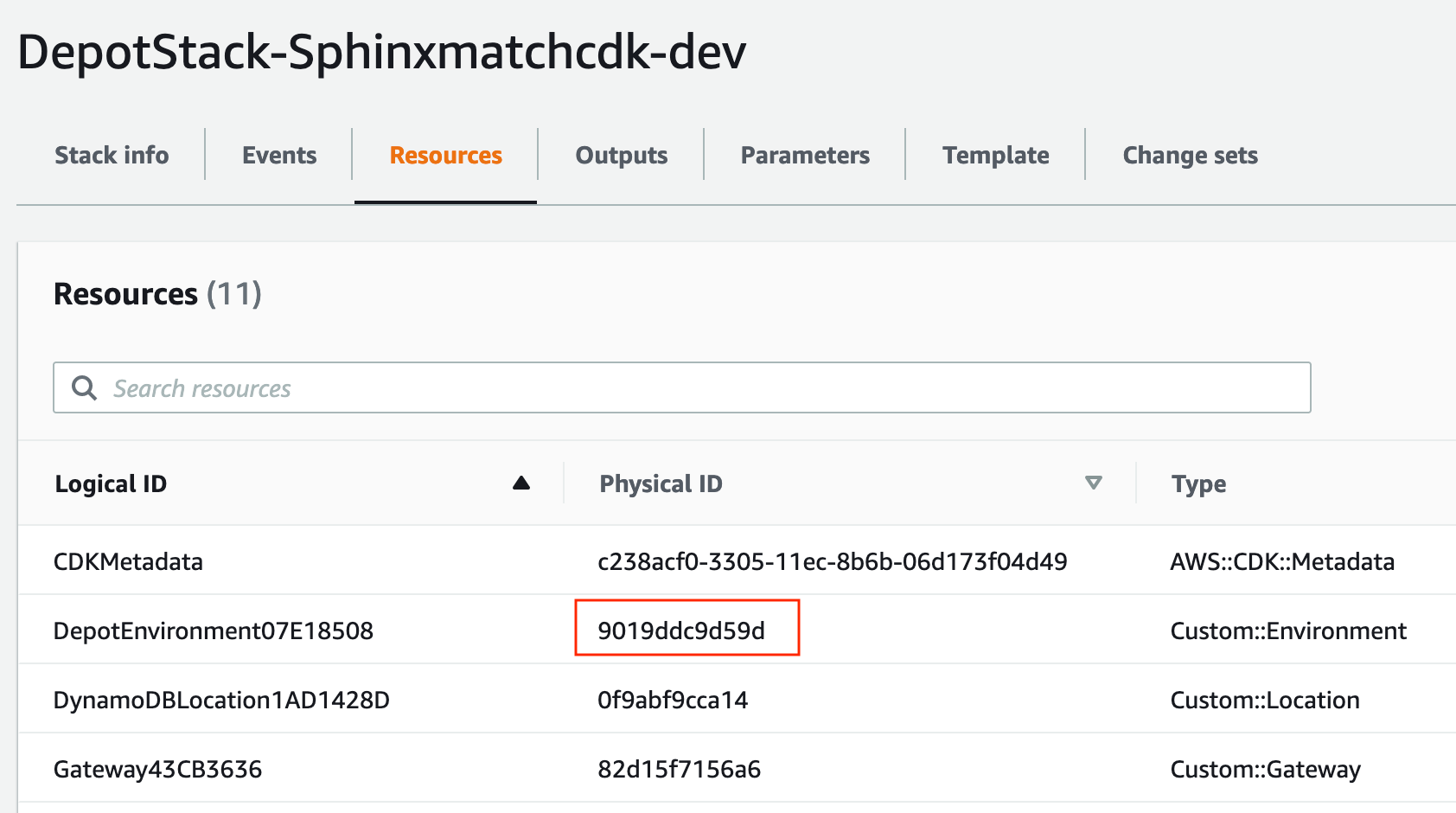
Using this ID, search for another CloudFormation stack named sdp-{ID}. Where {ID} is the Physical ID found in your top-level stack. The resulting stack that you find is the actual Depot Environment stack that houses all the resources discussed above in the Infrastructure topic headings.
If your Environment uses an idPrefix, then remember to include this when searching for the stack. E.g. in the sdp-{idPrefix-ID}
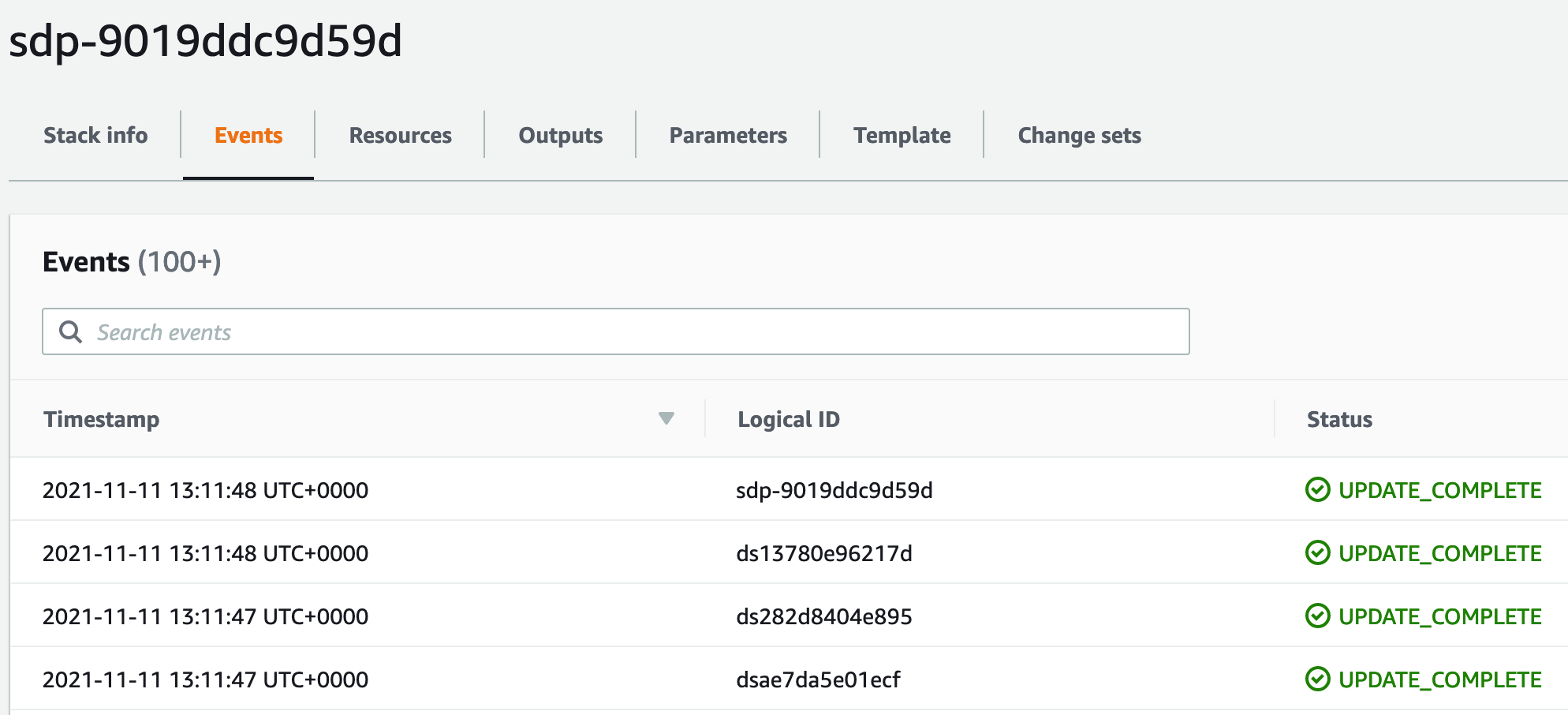
Clicking Events on this Stack will show the recent Create, Update or Delete operations that occurred. It may be possible to find the cause of any errors here.
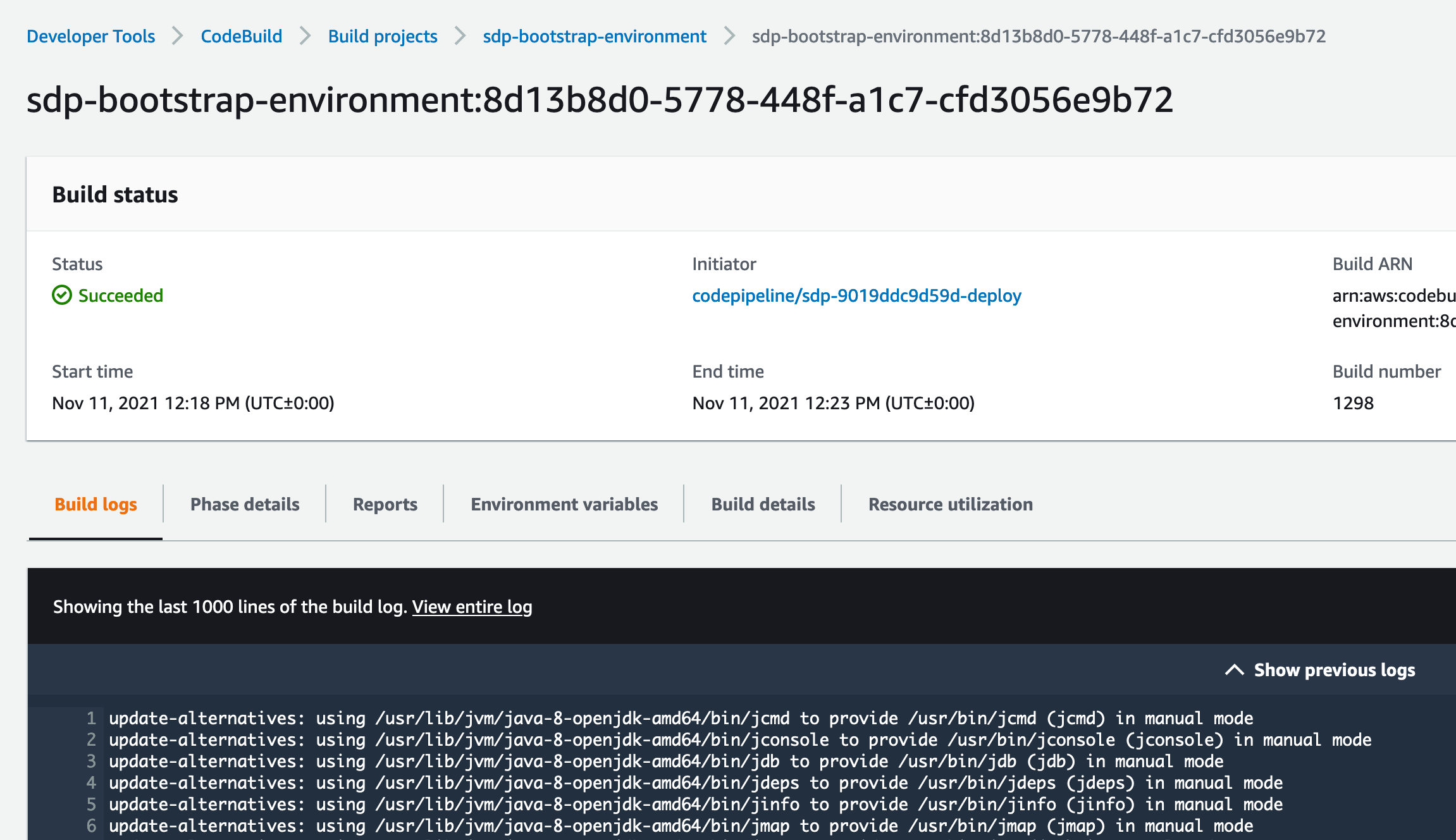
If the cause of the error is not clear in the list of Events, then move on to the next place to search, which is the CodeBuild project, sdp-bootstrap-environment. Each AWS account that supports Depot environments will have one of these CodeBuild projects. Every time you Create, Update, or Delete resources in a Depot environment, this CodeBuild project executes to perform the operations on the target environment. Each run leaves logs that you can check through.
CodeBuild Logs
The AWS account sdp-bootstrap-environment CodeBuild project
If you deployed a new Depot environment, or updated an existing Depot environment with your CDK code, and you found that it failed to complete, but could not see any specific errors or clues in the CloudFormation event logs, here is what you should do to track down the problem:
- Note the approximate time of the failure.
- Open the sdp-bootstrap-environment CodeBuild project.
- Locate the specific CodeBuild run / execution that ended about the same time as the time you noted the failure occurred. (This approximation is necessary because Depot environments usually run more than one CodeBuild execution during Create, Update, or Delete operations). If you are unsure, then open 3 x CodeBuild execution logs in new browser tabs surrounding the time of failure that you noted.
- Click Tail logs in the resulting logs window to get to the bottom of the execution logs. Then scroll a little bit further up and the error will usually be displayed there. If not, search through all the logs until you find the error. They’re usually highlighted in red, or look different to other information logs due to the stack trace being printed out from the error.

Sealed platform install
The CodeBuild project, deployed with the account's bootstrap, installs depot-platform-cdk from its tarball:
| Tarball | Install |
|---|---|
Has a project/ seal | yarn install --immutable from the seal |
| No seal | npm install -g, unsealed |
| Has a seal that does not install | Build fails with depot-platform-cdk@<version> is sealed but can't be installed as sealed; refusing to install unsealed |
Custom Resource failure logs
If the failure surfaced in the sdp-bootstrap-environment logs as an error that was returned from one of our Custom Resource Lambda functions, you’ll usually spot that as an error that specifically mentions a “Custom Resource” or “CustomResource”.
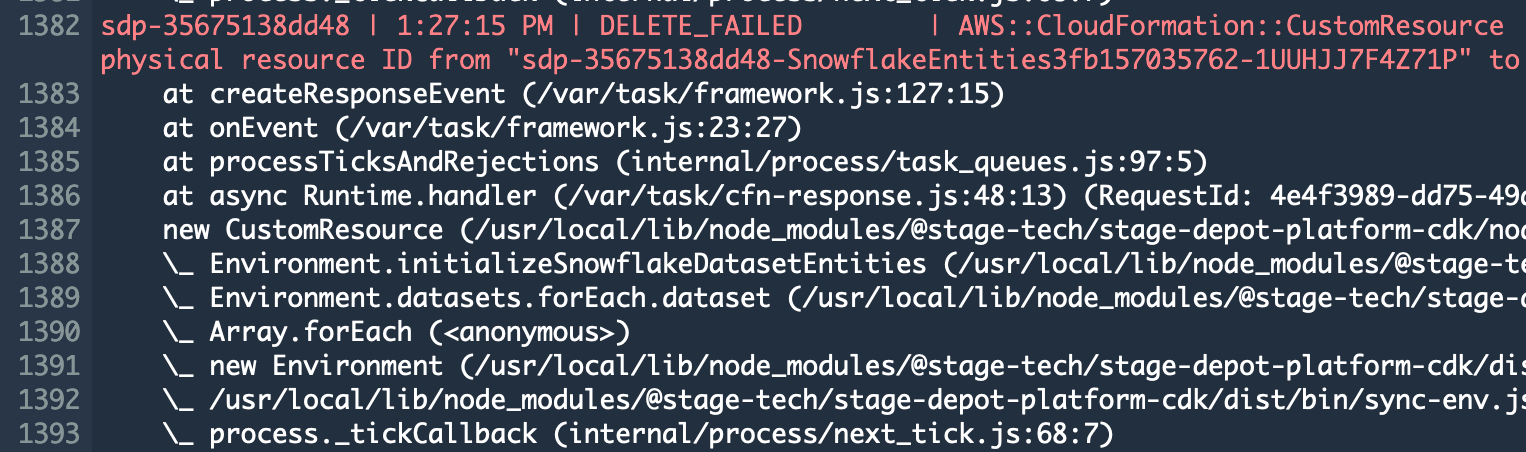
Usually we’ll try to “bubble up” the error from the Custom Resource so that it appears in the CodeBuild logs. For example the error in the screenshot above bubbled up the actual reason for failure in the logs:
sdp-35675138dd48 | 1:02:33 PM | CREATE_FAILED | Custom::SnowflakeDatabase | 35675138dd48/SnowflakeEntities-d2cb9f6cfa5c/Default (SnowflakeEntitiesd2cb9f6cfa5c) Received response status [FAILED] from custom resource. Message returned: Error: java.sql.SQLException: Cannot create PoolableConnectionFactory (JDBC driver encountered communication error. Message: HTTP status=403.)
In the above case, the Snowflake Location was incorrectly configured and the Custom Resource failed to connect via the JDBC connection string that it constructed with the supplied configuration.
When a more generic message for failure appears with no clear reason, other than the Custom Resource failing, you can still get logs, but you’ll need to find the CloudWatch Log Group that is used for that specific Custom Resource handler / function. You’ll need to look at the name of the resource that was being created, updated, or deleted and search the Log Groups in CloudWatch for the AWS Account for the matching Log Group. The latest log stream (or stream around the time of the error) should contain the detailed error message.
If the Custom Resource is included as a “new” resource with deployment of your stack, then it is possible that the resource is deleted as part of the CloudFormation stack rollback. In this case, the log group will at least still be left over (they are never deleted) so you can find logs by searching for that log group in the CloudWatch console.
Example Custom Depot Resource Provider Log Group name to search:
- sdp-bootstrap-resource log group location example: https://eu-west-1.console.aws.amazon.com/cloudwatch/home?region=eu-west-1#logsV2:log-groups/log-group/$252Faws$252Flambda$252Fsdp-bootstrap-resource)
Interfacing with your Depot environment
Interface with your Depot environment via one of these methods:
- Depot CLI
- Lambda Gateway
- GraphQL
- REST