Connect to Bastion
The Depot Aurora location type allows you to turn on a 'bastion host' which is a small instance that runs inside the VPC network where the Aurora cluster lives.
The Environment must have the property deployBastionHost set to true in your Depot Environment configuration. Your Depot Aurora Location
must also have a set of users defined in the configuration. These users will result in Depot IAM users being created in the RDS instance ahead of time. Note, you do not supply the permission levels for these users, as the CLI will generate the appropriate permissions based on the --permission argument, and cross-referencing that with your AWS IAM Role you are using to connect (--awsprofile).
The CLI's connect-bastion (or cb alias for short) command will connect to a Depot Aurora location's bastion host via
SSM and establish a reverse tunnel for you. It will also generate a temporary RDS token for you to use to connect to the
RDS instance using IAM authentication.
You can use this session and tunnel to easily connect your local Postgres tooling to the remote cluster, in a fashion that is secure, audited, and economical.
Quickstart
- ✅ Depot Aurora Location setup with initial list of user who need access to RDS Depot Aurora Location
- ✅ Depot CLI installed Install Depot CLI
- ✅ AWS CLI >= v2 installed Install AWS CLI
- ✅ AWS CLI >= v2 installed Install AWS CLI Session Manager plugin
- ✅ Depot Environment configured with
deployBastionHost: true - ✅ Install a Postgresql client - DBeaver download / install, psql download / install
Usage
# start a SSM session, forwarding traffic on local port 56789 to remote RDS instance on port 5432.
# You can then connect your tooling to localhost:5432 - e.g. DBeaver / psql etc...
# Connect using the username and password generated by running the command.
depot connect-bastion --region eu-west-1 --env env123 --location my-aurora-location --localport 56789 --permission w
Once the tunnel is started, you can connect your local tooling and use the IAM username and token generated by the CLI to connect
The CLI command defaults to use a permission level of 'o' (operate). You can set this with the --permission argument. Use either 'w' (write), 'o' (operate), or 'r' (read) to specify the permission level explicitly.
The command will output the username you should use (a derivative based on your username), and temporary password to provide to your local DB client.
For a short time, the legacy command argument --legacydbuser can be used to specify either depot_iam_reader, depot_iam_writer, or depot_iam_ops. The ability to connect with these users will be removed soon.
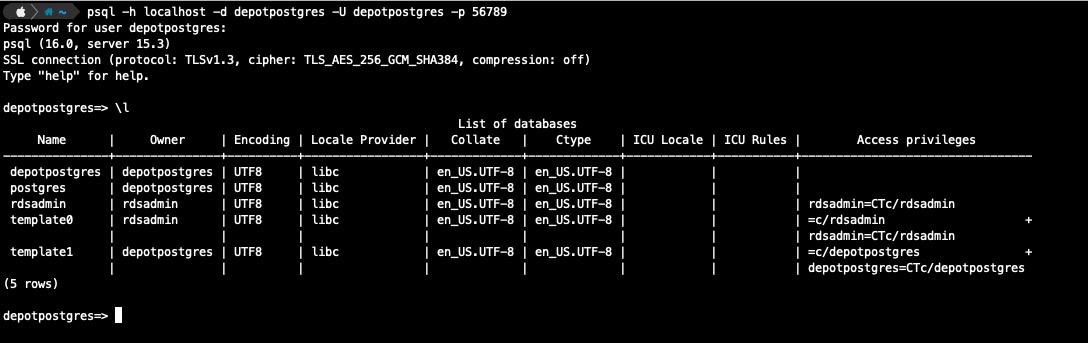
The screenshot above using psql doesn't show a password prompt or parameter because the environment
variable PGPASSWORD is detected automatically and provided to the tool.
Set your PGPASSWORD environment variable to RDS token value that is generated when using psql.
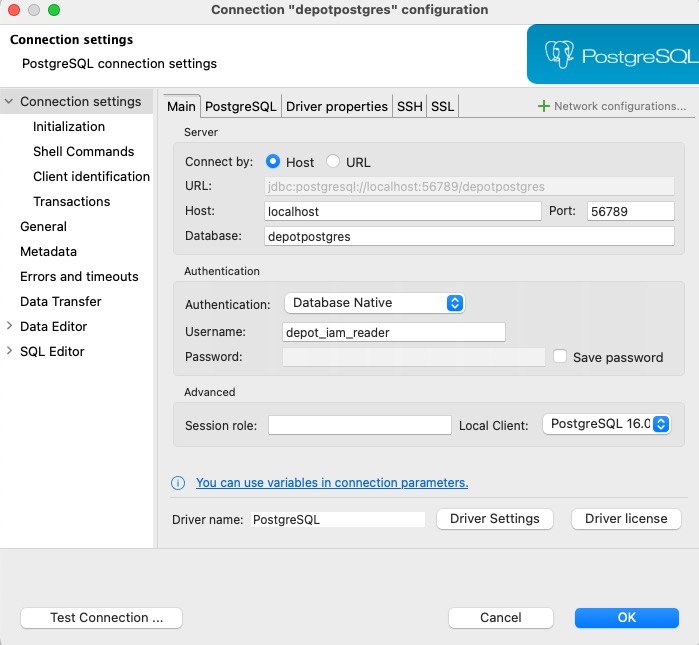
Here is an example showing the connection setup for DBeaver:
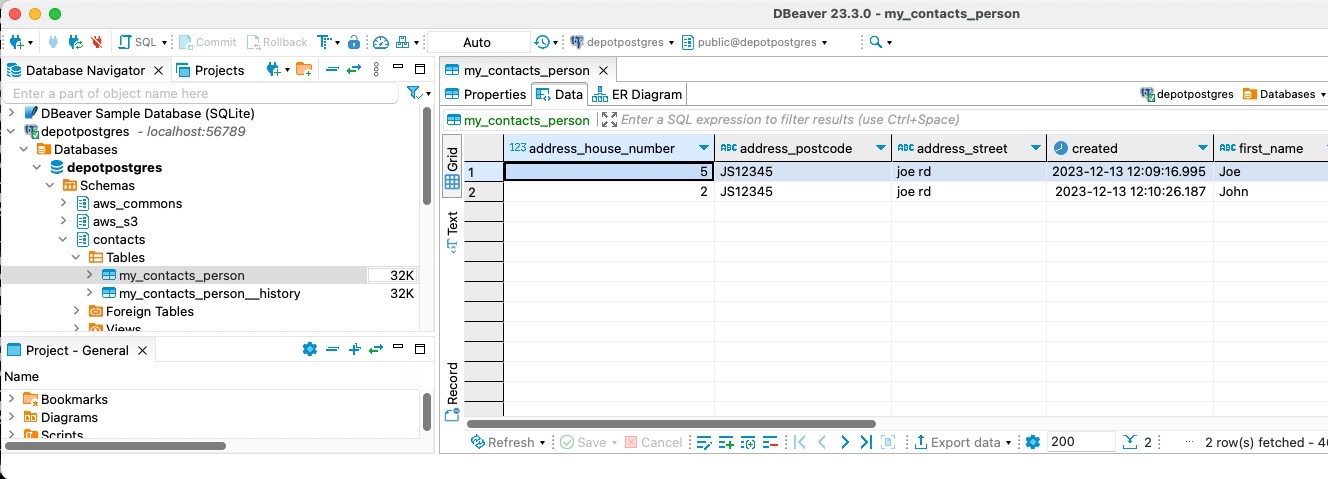
And querying data in the RDS instance once connected:
Workflow example, connecting to RDS Aurora Postgresql with DBeaver
The main thing you need to know is the Depot Location name that is backed by the Aurora Postgres database. Once you have this name, connecting is straight forward.
depot cb --location my-aurora-location
The above assumes you have configured a default Depot environment, region, and AWS profile using the depot cfg command. If you
want to specify the Depot environment ID, region, and AWS named profile to use, add the --env, --region, and --awsprofile arguments to
the above command with relevant values.
Once the command executes, it will establish an SSM connection to a Bastion instance running inside the VPC network. A temporary RDS auth token will be generated and (on macOS) copied to your clipboard. The username and token are also shown in the terminal session.
- Configure a new connection in DBeaver for Postgres. The first time you do this, you might be prompted to install
Postgres client drivers, which you should do.
- Connect by: Host
- Host: localhost (note: if you have trouble connecting with
localhost, it may be due to resolving to IPv6 loopback address, so try IPv4127.0.0.1instead) - Port: 56789 (default as per
depot cbdefaults), otherwise if you used--localportwith thedepot cbcommand, then use this port number instead - Database: depotpostgres
- Authentication: Database Native
- Username:
{the_username_provided_in_output}, or if you specified the--legacydbuser {legacy_username}argument with thedepot cbcommand, then use that value. - Password (blank) - when connecting you will paste your temporary RDS authentication token that was generated in as the password for the session (see output, or on macOS it is automatically copied to your clipboard)
- Local Client: PostgreSQL 16.0
- Driver name: PostgreSQL
- SSL: leave turned off if configurable, or set to 'preferred' or 'optional'
- Click OK to save the connection
- Right-click the connection and choose Connect
- The
depot cbcommand stdout logging should log a message saying:Connection accepted for session [username@domain-id]and DBeaver should be connected to the RDS Aurora PostgreSQL instance, where you can browse / query data in your schema(s).
The 'w' (write) user permissions grant pg_write_all_data, pg_read_all_data, ALL PRIVILEGES, and CREATE ON DATABASE on the depot database. The 'r' (read) permissions give pg_read_all_data rights. The 'o' (operate) user permissions supply GRANT pg_monitor, and GRANT EXECUTE ON FUNCTION pg_kill_connection(int), allowing the user to view and terminate active sessions.
How it works
The bastion host is a tiny EC2 instance running in the VPC that your Depot environment lives in. It uses the private VPC subnets and does not allow any ingress traffic in from the public facing internet. It also does not have any SSH key configured, specifically to make it more secure.
The EC2 instance runs the AWS SSM agent, which uses the network's NAT gateway to make outbound calls. Amazon's internal endpoints route traffic to the agent when you use the AWS CLI and SSM agent plugin to make a connection via Session Manager.
The Depot CLI wraps the AWS CLI ssm start-session command and routes the correct parameters through for the EC2
instance ID associated with your Depot environment and Aurora Location.
The advantages to this approach are:
- Secure (no public facing interfaces or web apps)
- Economical/cheap ($3 per month)
- Auditable (OKTA/SSO -> AWS -> SSM -> EC2 instance). Auditable via OKTA and AWS CloudTrail down to the user level, IP address, times, logs, SSM commands, etc...
Housekeeping with ops user
In certain situations, it is necessary for the project team to investigate which queries are running or locking specific
tables and terminate the session to ensure seamless database operations. The o (operate) user permission can be utilised for
this purpose, as it has the necessary permissions to both view and terminate active sessions.
A dedicated function, pg_kill_connection(integer), has been created to bypass PostgreSQL's restrictive permissions.
This function allows users to terminate any running process by providing the process ID (PID) and executing the following
command:
SELECT pg_kill_connection(5102);
Additionally, the 'o' user permission has the ability to view all running queries. The following SQL query provides insight into locking queries, allowing users to identify and, if necessary, terminate problematic connections:
SELECT pid,
       age(clock_timestamp(), query_start),
       array_to_string(pg_catalog.pg_blocking_pids(pid), ', ') AS blocking_pids,
       usename,
       application_name, -- state,
       wait_event_type || ': ' || wait_event                   AS wait_event,
       query
FROM pg_stat_activity
WHERE query != '<IDLE>'
  AND query NOT ILIKE '%pg_stat_activity%'
  and state != 'idle'
ORDER BY query_start desc;