Alarms and Alerting
Overview
Depot environments can be configured to alert on predefined alarms. When enabled, CloudWatch alarms are created which monitor important environment metrics around Depot infrastructure and software features.
Alarms work hand-in-hand with a designated Slack Workspace and Channel configuration.
Once-off Configuration
Once-off AWS Chatbot Configuration
In order to enable Alarms and Alerting for your Depot environment you will need to perform a once-off AWS Chatbot configuration via the Chatbot console. This process will authorise Chatbot to send messages to a Slack workspace.
- Navigate to your AWS Account that is used as the ‘Depot Backing Account'. i.e. the AWS account where your Depot Environment lives.
- Open the AWS Chatbot console.
- In the Configure a chat client section, use the Chat client drop down list to select Slack.
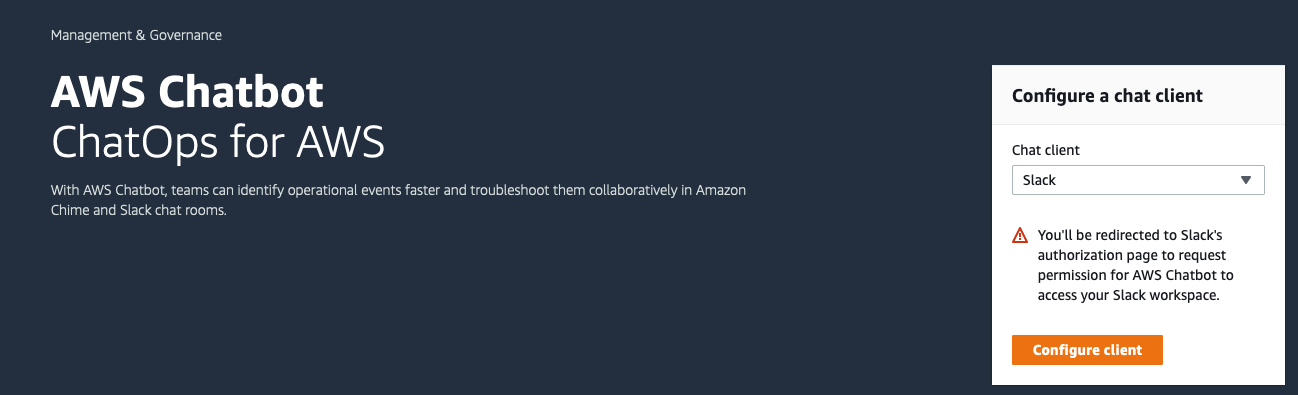
- Click the Configure client button.
- You will get a permission prompt asking you to confirm if AWS Chatbot can access your Slack workspace related items.
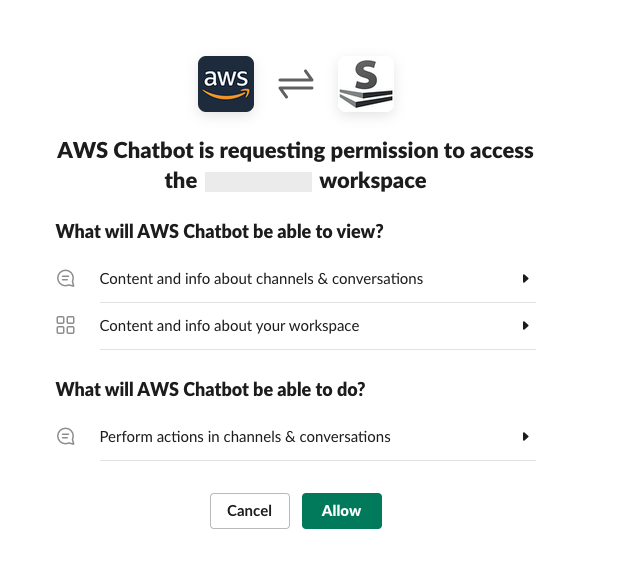
- Click Allow.
- In the following Configured clients page, you will see your configured Slack client workspace item. Copy / make note of the Workspace ID. You will need this to configure your Depot Alarms and Alerting.

Depot CDK Configuration
Simple Configuration
To enable Alarms and Alerting for your Depot Environment, you’ll provide a configuration block entry in your main Environment Construct.
The most basic Alarm and Alerting configuration will enable all default alarms and alerts with a designated Slack channel. Here is what the configuration will look like (in an existing Environment CDK resource definition). Note the relevant opsAlarms property:
const depotEnvironment = new Environment(this, 'DepotEnvironment', {
  name: 'test',
  account: { id: "123456789012", name: "test" },
  opsAlarms: {
    enabled: true,
    slackWorkspaceId: "T5XXXXXXX",
    slackAlertsChannelId: "C01J0XXXXXX",
    slackChannelName: "my-slack-integration-tests",
    includeDeployment: true,
    includeInfrastructure: true,
    includeIssues: true
  }
});
slackWorkspaceId- The Workspace ID you copied down when you created your once-off AWS Chatbot client configuration.slackAlertsChannelId- The ID of the channel you want alerts to be sent to. You can retrieve this by right-clicking the channel in your Slack client, and choosing Copy link. Then paste the URL into a text editor, and look for the last segment of the URL after the last forward slash. E.g. https://myworkspace.slack.com/archives/C01J0XXXXXXslackChannelName- The friendly name of the channel you want alerts to be sent to.includeDeployment- Include deployment failures (failures during deployment, and failures of post-deployment tests)includeInfrastructure- Include infrastructure alarms (e.g. cloudformation alarms triggered)includeIssues- Include a summary of differences detected between schemas and deployed storage
Limitations
You cannot share a single Slack Channel between multiple Depot environments. This is a current limitation of AWS ARNs.
AWS ChatBot and Slack only allow one Slack channel ID to be configured per AWS ChatBot account configuration. This means you cannot re-use a Slack channel for multiple Depot environments. Use a unique Slack channel per environment in any one particular AWS Account. Only public Slack channels in your workspace are supported for receiving alert messages.
Configuration Summary
Once a Depot Environment has had alarms and alerting configured, you will find a Configured channel entry created in the AWS Chatbot console. For example:

The Chatbot API endpoint is subscribed to a dedicated environment-level SNS topic. This handles the integration required for Alarm alerts to be delivered to your Slack channel. Alarm and Operations
Alarms are created in AWS Cloudwatch. When an Alarm threshold is tripped, two things happen:
- An alert will be sent to your Slack Channel with the Alarm breach details.
- An AWS OpsItem will be created in System Manager OpsCenter.
You can use AWS OpsCenter to manage alarm and issue triaging for your Depot environment.
Here is what an OpsItem raised for a Depot Environment’s primary events message queue visible messages threshold being breached looks like:
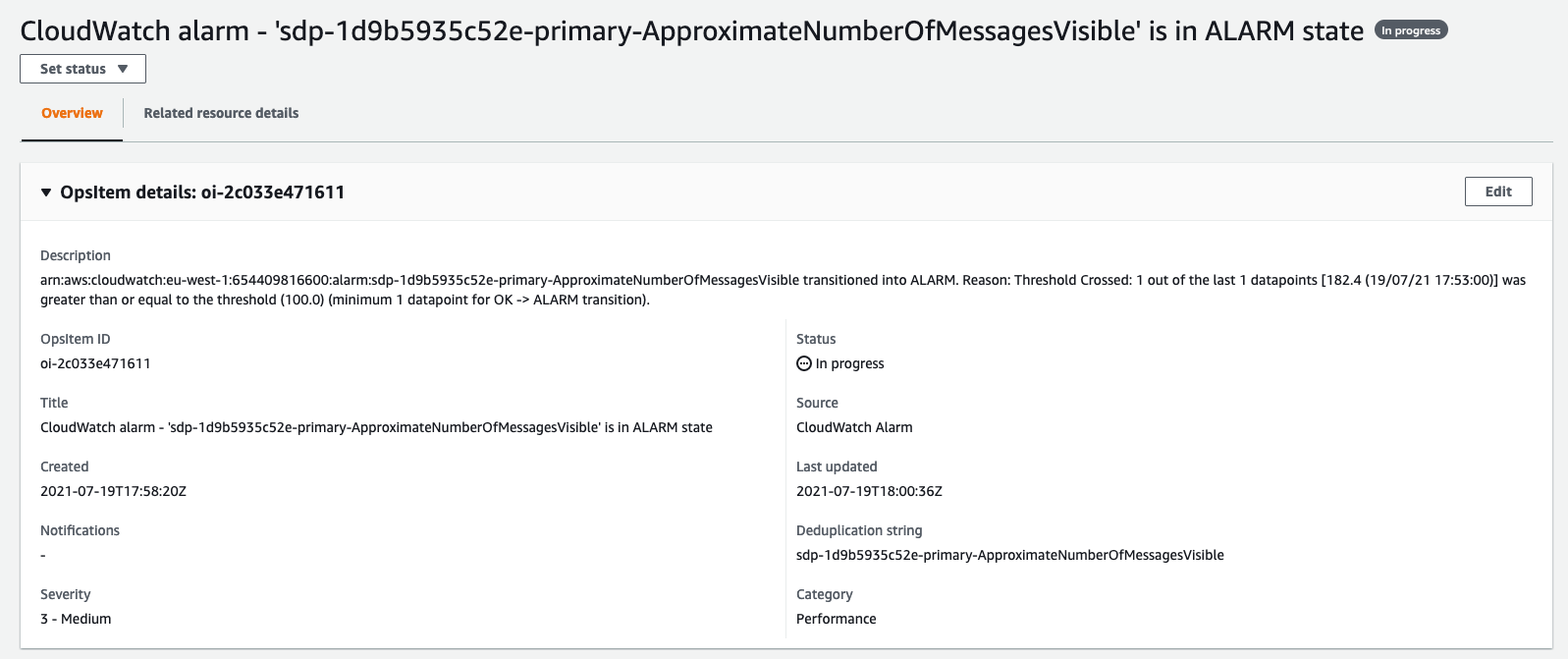
The OpsItem status can be managed - transitioning from Open → In Progress → Resolved.
Using OpsCenter, you can create custom automation run books that are made to deal with OpsItems. For example, you might create a runbook that alerts your broader team, or one that will report back to you with further diagnostic details. The idea here is that you can customise the workflow process beyond an OpsItem being raised as you see fit.
Slack Alerts
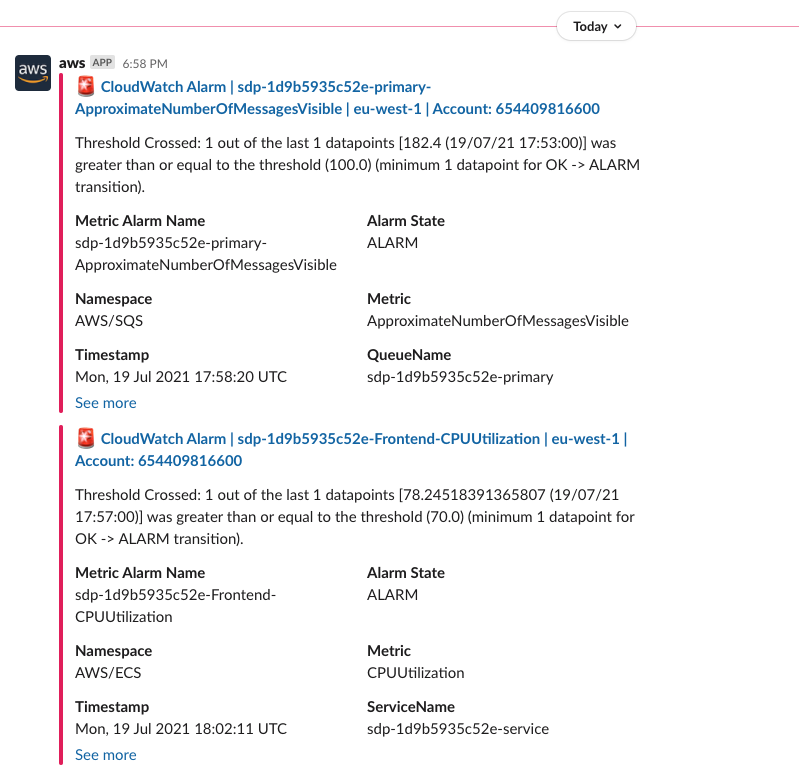
Here is a scenario that could generate OpsItems and Slack Alerts. A large burst of internal Depot Event messages begins, in response to a very chatty subscription you might have configured. The event messages (held in AWS SQS) begin to form a backlog as your chosen Depot Application size might be the smallest instance size (for cost saving reasons).
The application can’t process the backlog quickly enough, and visible messages build up. This trips the visible event messages alarm. Shortly after, the Depot Application Task CPU Utilization alarm is also tripped because the application is spending a lot of CPU time dealing with message processing.
A typical set of Slack alert notification messages for this kind of event might look like this:
Summary
Slack alerts can inform your team of issues. OpsCenter integration ensures that an OpsItem is raised for each of these alarms, allowing your team to triage and deal with issues following your standard process(es).