Alerts
Depot environments can be configured to alert on predefined alarms. When enabled, alarms are created which monitor important environment metrics around Depot infrastructure and Software features.
Alarms work hand-in-hand with a designated Slack Workspace and Channel configuration. They also work with AWS OpsCenter, specifically creating actionable OpsItems when alarms are triggered.
Once-off AWS Chatbot Configuration
In order to enable Alarms and Alerting for your Depot environment you will need to perform a once-off AWS Chatbot configuration via the Chatbot console. This process will authorise Chatbot to send messages to a Slack workspace.
- Navigate to your AWS Account that is used as the ‘Depot Backing Account'. i.e. the AWS account where your Depot Environment lives.
- Open the AWS Chatbot console.
- In the Configure a chat client section, use the Chat client drop down list to select Slack.
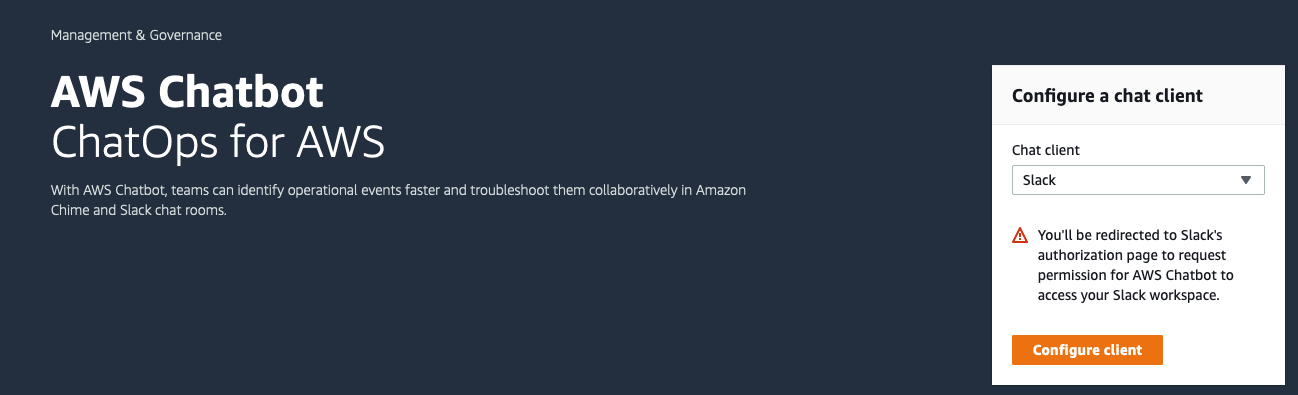
- Click the Configure client button.
- You will get a permission prompt asking you to confirm if AWS Chatbot can access your Slack workspace related items.
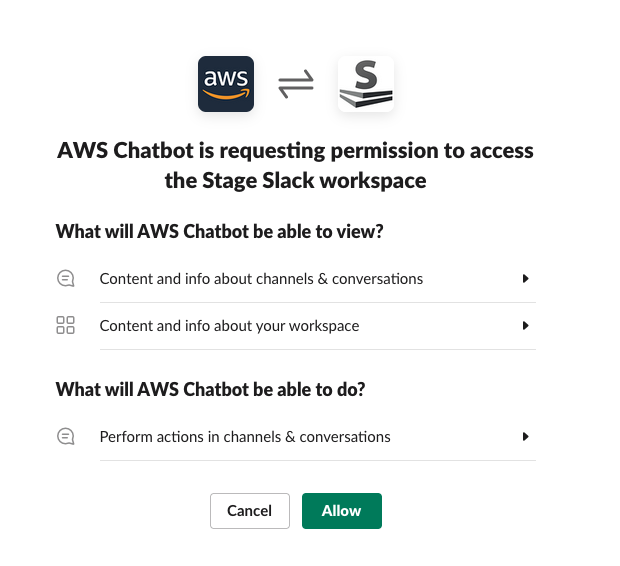
- Click Allow.
- In the following Configured clients page, you will see your configured Slack client workspace item. Copy / make note of the Workspace ID. You will need this to configure your Depot Alarms and Alerting.
CDK Usage
To enable Alarms and Alerting for your Depot Environment, you’ll provide a configuration block entry in your main Environment Construct.
The most basic of Alarm and Alerting configuration will enable all default alarms and alerts with a designated Slack channel. Here is what the configuration will look like (in an existing Environment CDK resource definition). Note the relevant opsAlarms property:
const depotEnvironment = new Environment(this, 'PlatformEnvironment', {
  name: 'test',
  account: { id: accId, name: "test" },
  frontend: {
    taskSize: StageDepotApplicationTaskSize.SMALL,
  },
  opsAlarms: {
    enabled: true,
    slackWorkspaceId: "T5XXXXXXX",
    slackAlertsChannelId: "C01J0XXXXXX",
    slackChannelName: "my-environment-alerts"
  }
});
slackWorkspaceId- The Workspace ID you copied down when you created your once-off AWS Chatbot client configuration.slackAlertsChannelId- The ID of the channel you want alerts to be sent to. You can retrieve this by right-clicking the channel in your Slack client, and choosing Copy link. Then paste the URL into a text editor, and look for the last segment of the URL after the last forward slash. E.g. https://myworkspace.slack.com/archives/C01J0XXXXXXslackChannelName- The friendly name of the channel you want alerts to be sent to.
Summary
Slack alerts can inform your team of issues. OpsCenter integration ensures that an OpsItem is raised for each of these alarms, allowing your team to triage and deal with issues following your standard process(es).