Query ElasticSearch inside VPC
Depot Environments will provision ElasticSearch (now known in AWS as OpenSearch) into the Depot Environment VPC by default.
This means it is more difficult to connect to and query your ES domain as it runs inside of the private network boundary of the Depot VPC. You may want to do this in development environments or scenarios where you wish to directly query ES / OpenSearch without querying via the Depot API.
You have different options to query ElasticSearch directly when running in a VPC. Here are some:
- Set up a Lambda Function and attach to the same VPC as your ES domain. Use the lambda function to query the ES REST API.
- Create a small EC2 instance and connect it to the same VPC as your ES Domain. SSH (or if you prefer a Windows instance, RDP) to obtain a remote connection, then query the ES REST API direct from inside the VPC network with cURL, PowerShell, or a web browser.
Important: When creating an EC2 instance, be sure to restrict the Security Group you configure on the instance to only allow inbound connections for your chosen protocol (e.g. 22 for SSH or 3389 for RDP) to a designated, static IP address belonging to you. It is always safest to choose My IP in the security group configuration wizard if you are unsure of your own address. Be sure that the resulting IP address ends with a /32 suffix. This means the rule is scoped to that address and that address only.
SSH tunnel to ElasticSearch
In this page we'll describe how to create an SSH tunnel to your VPC hosted ElasticSearch domain so that you can query ES and use Kibana as if it were a local resource on your own system.
- Create a small EC2 instance:
- Choose an Amazon AMI (Linux 2) based image,
- Choose a size of t2.nano or t3.nano, and leave the default EBS disk size.
- Remember to keep in mind the warning above when creating a security group (don’t accept the default “launch-wizard” security group). i.e. allow port TCP 22 inbound for your home/office IP address only.
- For the networking configuration, choose the same VPC as your Depot environment and ensure you choose one of the “Ingress” subnets (facing the internet side). This enabled a public IP address which you’ll connect to via SSH.
- Take note of the EC2 keypair you choose and be sure you have a local copy somewhere safe.
- Once the EC2 instance has started, you can connect to it by:
- Creating an entry in your ~/.ssh/config file as follows
Host elasticsearchlocal
HostName {public IP address of your EC2 instance}
User ec2-user
IdentitiesOnly yes
IdentityFile ~/.ssh/Keys/{your-keypair-file}.pem
LocalForward 9200 {vpc-endpoint-hostname-of-your-es-instance}.eu-west-1.es.amazonaws.com:443
You’ll need to get the VPC endpoint of your ElasticSearch domain from the OpenSearch console and reference it in the LocalForward section of the config above. Don’t forget to point to your local EC2 keypair .pem file, and add the correct public IP address of your EC2 machine for the HostName.
- Start the SSH tunnel: ssh elasticsearchlocal -N
- Or use connection line
ssh -i ~/.ssh/{your-keypair-file}.pem -L 9200:vpc-endpoint-hostname-of-your-es-instance.eu-west-1.es.amazonaws.com:443 ec2-user@{public IP address of your EC2 instance}
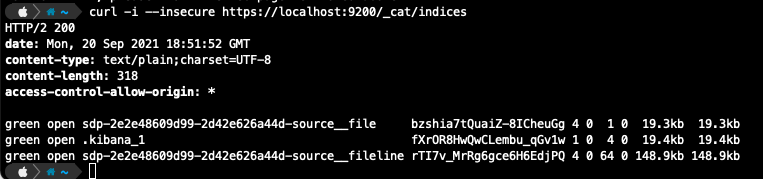
- With the tunnel started, you can now use a different terminal/shell to query ElasticSeach using localhost:9200.
Or access Kibana: https://localhost:9200/_plugin/kibana/app/kibana
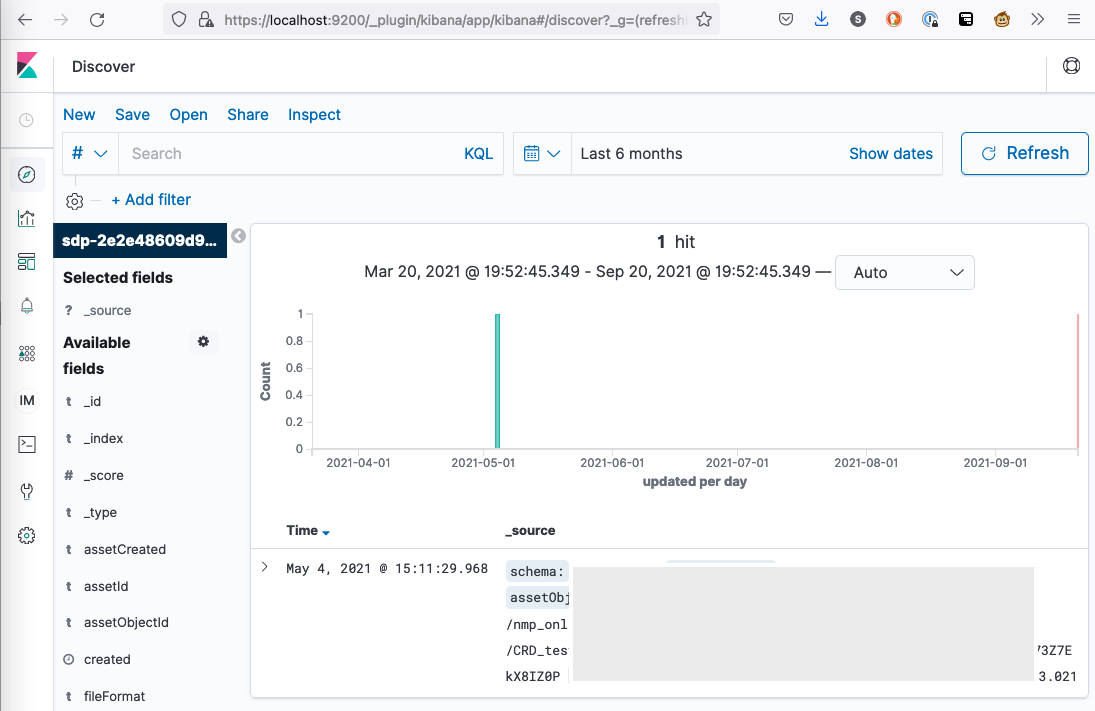
The default SSL certificate won’t be valid on localhost, so you’ll need to accept the incorrect
certificate or use --insecure on cURL when connecting.